Create Your Video with Seedance
Seedance is ByteDance’s family of AI video models. Use it on Seedancer to create videos from text or guide a scene with image, video, and audio references.
0 / 30000
See Seedance in Motion
From playful animation to cinematic scenes, explore what your next video could look like.
What Is Seedance AI?
Seedance generates video from a written scene or visual references. It can create sound alongside the picture, bringing dialogue, atmosphere, and action into the same clip. Seedancer gives you a browser-based workspace to use these models, preview results, and download your videos.
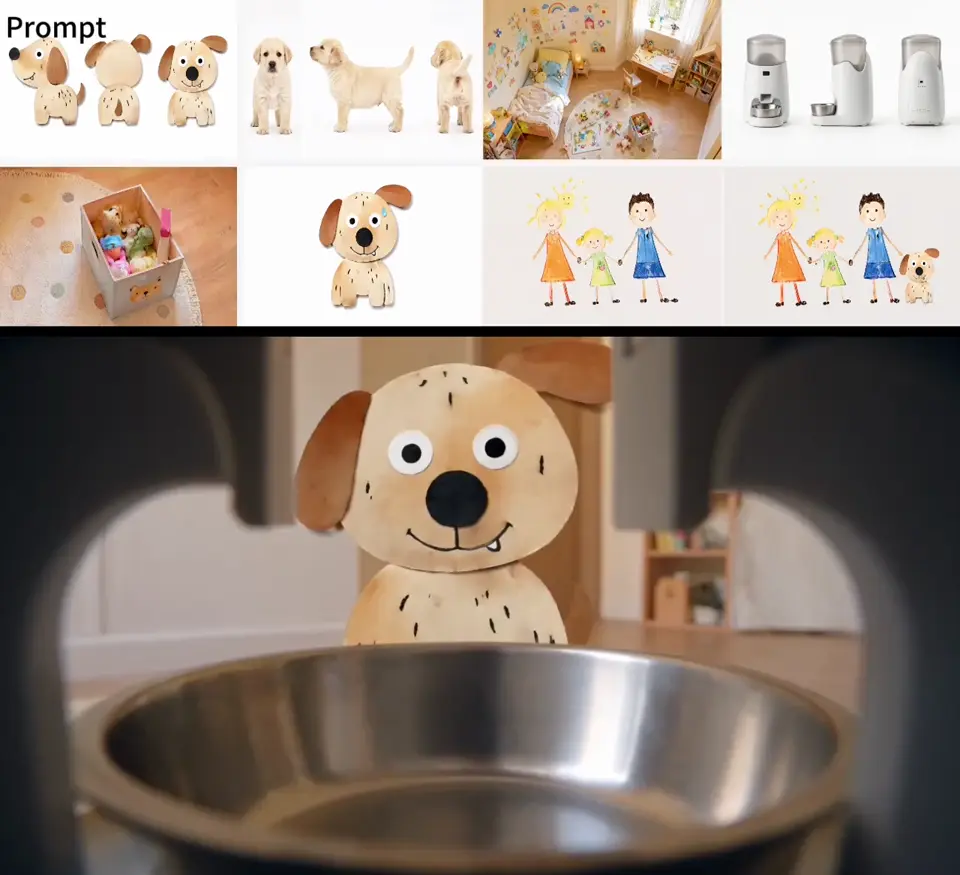
Use text to explore a scene you have imagined. Start with an image when the subject or composition is already decided. For a more specific creative direction, reference mode lets you combine images, video clips, and audio with written instructions.
For a product reveal, character animation, or short story, choose the model around the scene you want to make. Explore Seedance 2.5 for videos up to 30 seconds, reference options, and a comparison with Seedance 2.0.
Give Your Video a Clear Direction
Use each reference for a specific job, so your prompt can focus on what happens next.
Describe the Scene
Use text to set the subject, action, and setting. Add the camera move and any sound you want, rather than relying on broad style words alone.
Show the Look
Use images to guide a character, product, location, or visual style. In frames mode, an opening image sets the starting frame; in reference mode, images provide visual guidance.
Reference the Movement
Add a video reference for the motion, framing, or pacing you have in mind. Explain which elements to follow and what should change in the new scene.
Guide the Sound
Use an audio reference to suggest a voice or sound direction. This is different from generating new sound: describe the dialogue and atmosphere you want in the output.
Start with an Idea or a Reference Image
Create the video directly, or prepare the image that gives your scene a starting point.
AI Video Generator
Write a scene or upload your starting image in the Seedance video generator. Describe the action, choose the video settings, and preview the result. Use reference mode when you need additional guidance for appearance, camera movement, or sound.
Create VideoAI Image Generator
Create a character, product scene, or background with Seedream, then edit the details before animating it. A prepared image helps you decide the look first, leaving the video prompt to describe movement. You can also use the image tool for standalone artwork and design.
Create ImagePlan the Subject, Action, and Camera
A clear creative brief gives Seedance more useful direction than a long list of effects.
Choose a Clear Subject
Make the main character or object easy to identify. For a product shot, use a reference that shows its shape and important details without a distracting background.
Give the Action a Sequence
Describe what starts, what changes, and where the shot ends. Begin with one main action; add another only when it belongs in the same scene.
Describe the Camera Separately
A subject turning and a camera circling it produce different shots. Name the framing and camera move explicitly, so the intended movement is easier to interpret.
Write Sound into the Scene
Specify speech, ambient sound, or music when it matters to the shot. Include the words you want spoken and identify the speaker rather than leaving the dialogue unspecified.
Review Before You Share
Watch for changes in faces, product details, contact between objects, and audio timing. If a result misses your intent, simplify the action or revise the relevant reference before trying again.
How to Use Seedance
Start with a simple shot, then refine the result around your idea.
Add Your Starting Material
Write a scene for text to video, or upload an image to animate. Use reference mode when you want to combine visual and audio guidance.
Set the Direction
Describe the subject’s action, the camera movement, and any sound. Choose the model, aspect ratio, and duration that suit your shot.
Generate and Refine
Preview the video and check the details that matter to your project. Adjust your instructions if needed, then download the take you want to use.
Seedance Questions, Answered
Answers about creating videos, using references, and choosing how to start.
Seedance is a family of AI video generation models developed by ByteDance. Seedancer is an online platform where you can use Seedance to create videos from prompts and references, with support for generated audio.
Use the generator on this page. Sign in, write a prompt or upload an image, choose your video settings, and generate. You can preview and download the result in your browser without installing a local model.
Yes. Use image-to-video frames mode to animate a photo or illustration from a chosen starting frame. Describe the action and camera movement you want to add. Reference mode is useful when you want an image to guide the scene without using it as the opening frame.
Yes. Seedance reference mode accepts image, video, and audio inputs alongside text. Tell the model what each reference should guide, such as a character’s appearance, a camera move, or a sound direction. The available upload limits depend on the selected model.
Yes. Seedance supports generating audio alongside video. Describe the dialogue, sound effects, or atmosphere you want, and keep audio generation enabled. Listen to the result as well as watching it before you download or share.
Yes. You can try Seedance free on Seedancer. Start with a scene description or reference image, preview your video, and refine the motion and sound around your idea.
Seedance 2.5 supports longer scenes and a larger set of references, making it useful when a shot needs more time or more detailed guidance. Seedance 2.0 remains an option for shorter clips. Choose by the duration, references, and output settings your task needs, rather than the version number alone.
Create Your Next Video with Seedance
Give your scene a starting point. Add the motion and sound that make it yours.